Billing
The Billing page is your central hub for managing the financial side of your PipeOps account. From here you can review your active subscription, monitor upcoming charges, update payment details, change where billing emails are delivered, and download past invoices.
Accessing the Billing Page
- Sign in to your PipeOps dashboard at console.pipeops.io.
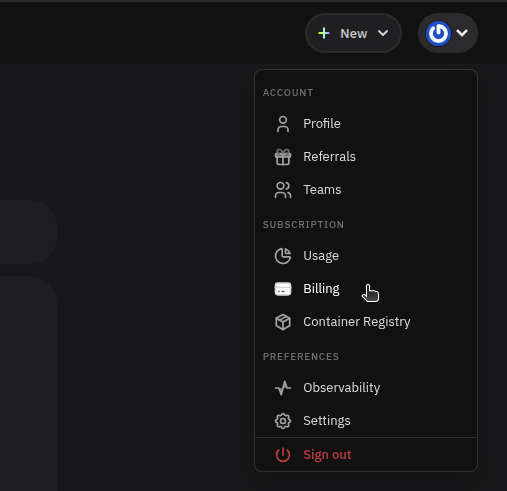
- Click the account menu icon at the top-right corner of your dashboard.
- Under Subscription, select Billing.
Current Plan Overview
The top section of the Billing page displays your active subscription at a glance.
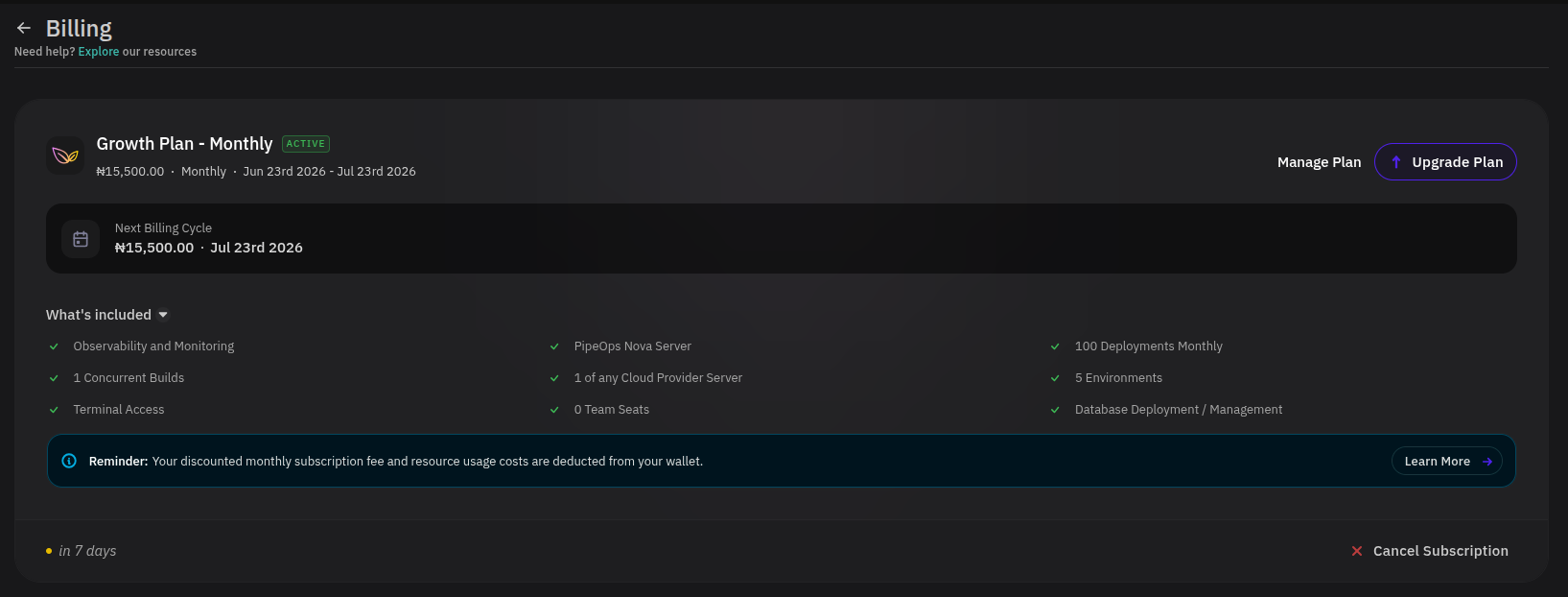
The plan card shows:
- Plan name and billing interval — e.g. Growth Plan · Monthly
- Active badge — confirms that your subscription is currently active
- Subscription period — the start and end dates of the current billing cycle
- Next Billing Cycle — the amount due and the scheduled charge date
Your discounted monthly subscription fee and all resource usage costs are deducted from your wallet balance and connected card. See Pricing for a full breakdown of how charges are calculated.
What's Included
Below the plan card, the What's Included section lists every feature and resource limit covered by your current plan. The items shown vary depending on your active tier. For example, the Growth plan includes:
| Feature | Limit / Status |
|---|---|
| Observability and Monitoring | Included |
| Concurrent Builds | 1 |
| Terminal Access | Included |
| PipeOps Nova Server | Included |
| Cloud Provider Server | 1 of any |
| Team Seats | 0 |
| Deployments Monthly | 100 |
| Environments | 5 |
| Database Deployment / Management | Included |
For a full comparison of all available tiers, see the Pricing page.
Upgrading Your Plan
To move to a higher subscription tier, click the Upgrade Plan button at the top-right of the plan card. This opens the plan selection modal where you can review available tiers and confirm your upgrade.
Upgrades take effect immediately.
Cancelling Your Subscription
To end your current subscription, click Cancel Subscription at the bottom of the plan section. You will be prompted to confirm before any change is applied.
Cancelling your subscription removes access to plan-specific features immediately. However, any resource usage costs already incurred during the cycle will still be charged before you can resume your subscription.
Billing Contact
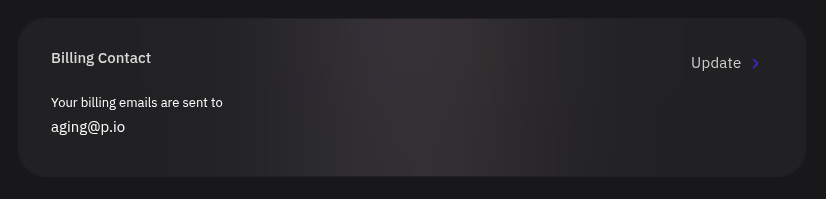
The Billing Contact section shows the email address where all billing-related emails and invoices are sent.
Updating Your Billing Email
- Click Update in the Billing Contact section.
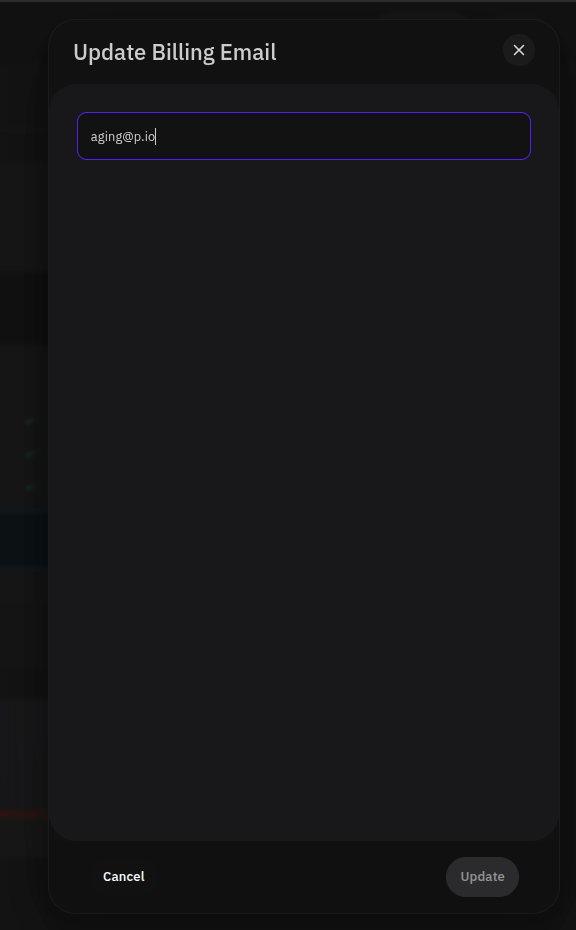
- In the Update Billing Email dialog, edit the email address in the input field.
- Click Update to save, or Cancel to discard your changes.
Payment Method
The Payment Method section shows the card currently charged for subscription fees and usage costs.
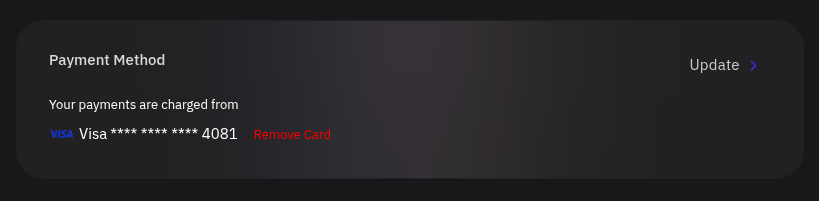
Changing Your Default Payment Card
- Click Update in the Payment Method section.
- The Update Default Payment Card dialog lists all cards linked to your account. The card marked Primary is the one used for all automatic charges.
- Select a different card to designate it as primary, or click + Add a New Card to add a new payment method.
- Click Save to apply your selection, or Cancel to exit without changes.
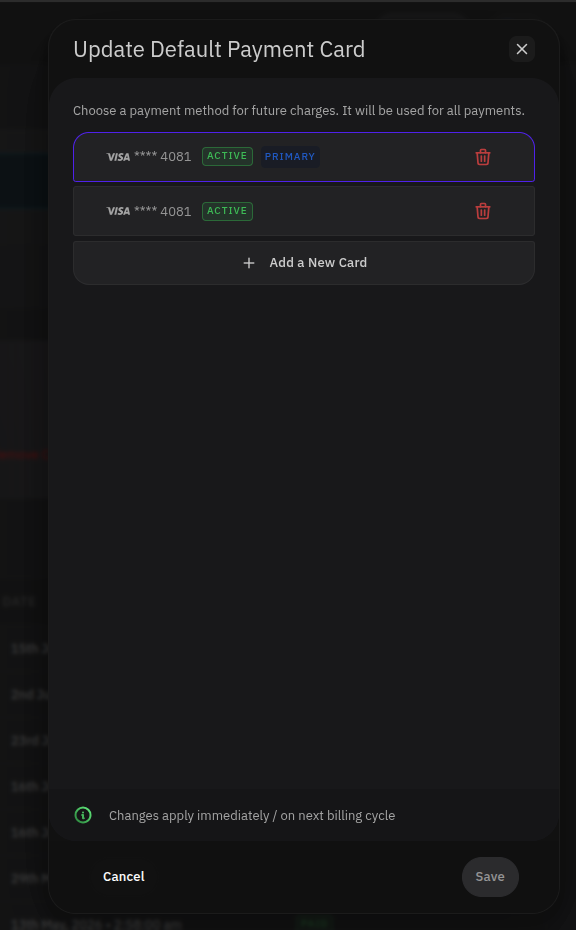
Changes to your default payment card apply immediately or take effect on your next billing cycle.
Removing a Card
In the Update Default Payment Card dialog, click the delete icon next to the card you want to remove. A card currently designated Primary cannot be removed until a different card is set as primary.
Billing History
The Billing History table provides a complete record of all invoices issued on your account.
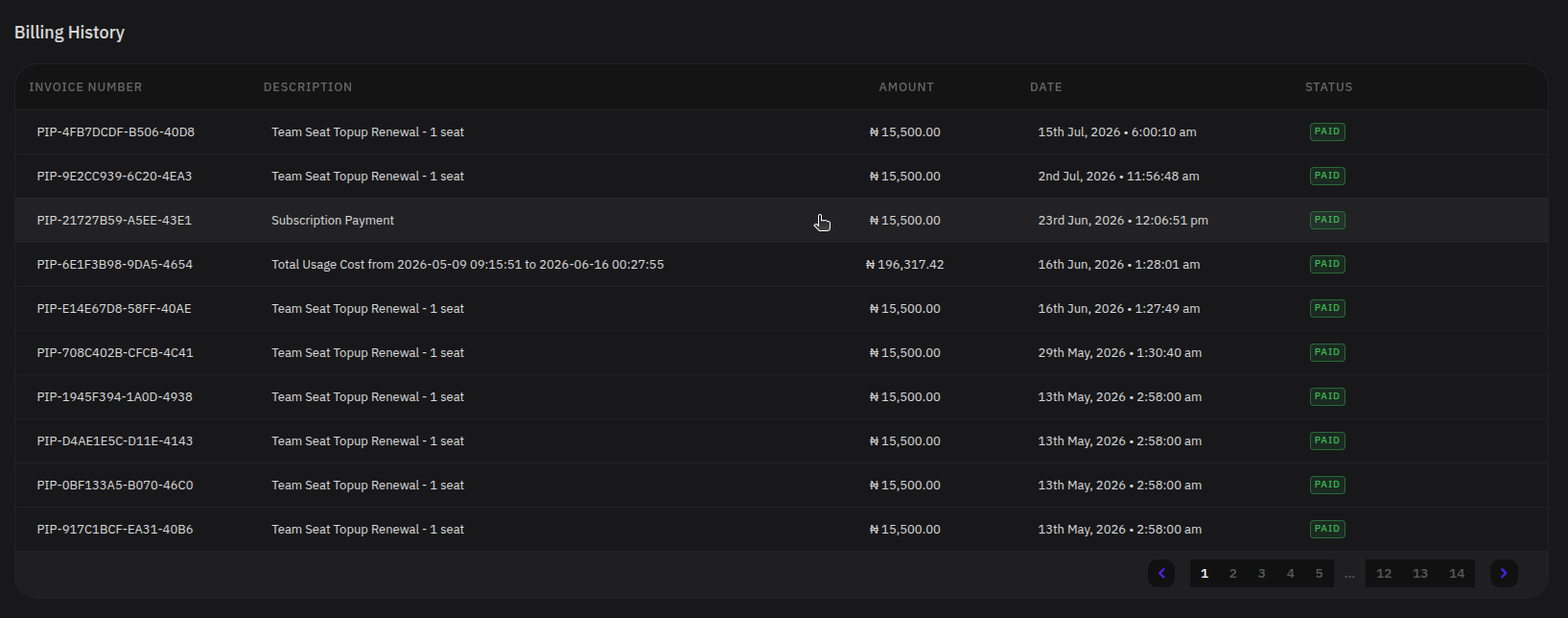
Each row in the table contains the following columns:
| Column | Description |
|---|---|
| Invoice Number | Unique invoice identifier in the format PIP-XXXXXXXX-XXXX-XXXX |
| Description | Summary of the charge — e.g. Subscription Payment, Team Seat Topup Renewal, Total Usage Cost from [start date] to [end date] |
| Amount | The amount billed in your account's local currency |
| Date | The timestamp when the invoice was issued |
| Status | PAID for settled invoices; UNPAID for outstanding ones |
When an invoice shows an UNPAID status, a Pay Now button appears directly beside the status badge. Click it to settle the outstanding balance immediately.
Use the pagination controls at the bottom of the table to browse through all pages of your billing history.
Viewing Invoice Details
Click any row in the Billing History table to open the invoice detail modal.
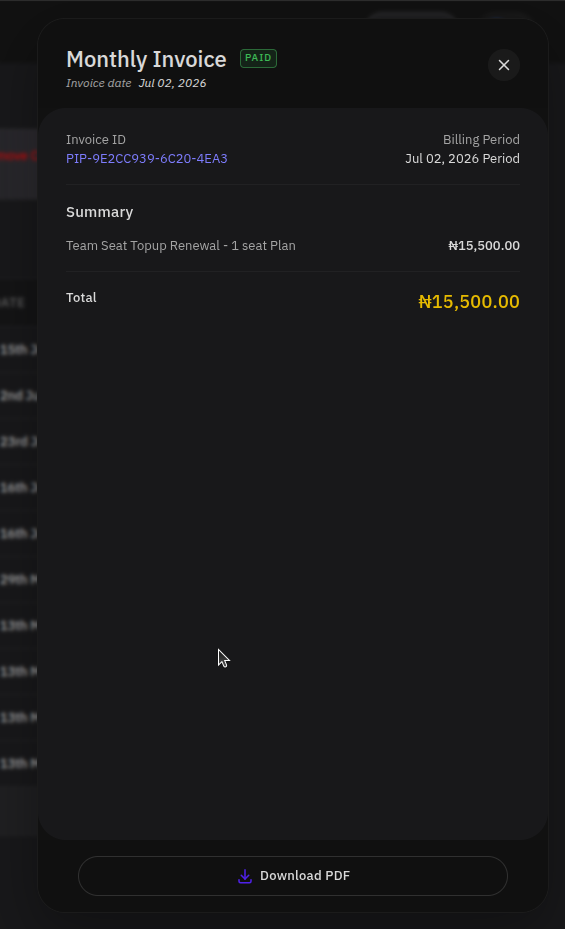
The invoice modal displays:
- Invoice ID — The unique reference for this invoice (e.g.
PIP-5B2935AB-66F5-4ED7) - Invoice Date — The date the invoice was generated
- Billing Period — The time range this invoice covers
- Summary — Line items including server or resource charges, any subscription discounts applied, subtotal, and the final total due
- Download PDF — Click to save a PDF copy of the invoice for your records or accounting purposes
FAQs
When is my payment charged?
Your subscription fee and any outstanding resource usage costs are deducted at the start of each billing cycle. Usage is calculated at the end of the previous cycle and collected before the next subscription payment.
What happens if a payment fails?
If a charge fails, PipeOps will retry the payment and send a notification to your billing email address. Go to the Billing page and update your payment method to resolve the issue before the next retry attempt.
Can I have more than one payment card on file?
Yes. You can add multiple cards via the Update Default Payment Card dialog. Only the card marked Primary is used for automatic charges. You can switch the primary card at any time, and the change takes effect immediately.
How do I download a specific invoice?
In the Billing History table, click the invoice row you need. In the detail modal that opens, click Download PDF to save a copy locally.
What does "Total Usage Cost from [start date] to [end date]" mean in my billing history?
This entry represents a consolidated charge for all compute and resource usage accumulated between the two dates shown. It is generated at the end of each usage period and collected along with your next subscription payment. See Usage for a detailed breakdown of what contributes to this charge.