Add-on Overview
After deploying an add-on, or when you select an existing one from the installed Add-ons page, you land on the add-on's Overview page. The layout differs slightly depending on whether the add-on is a database or a non-database service.
Non-Database Add-on Overview
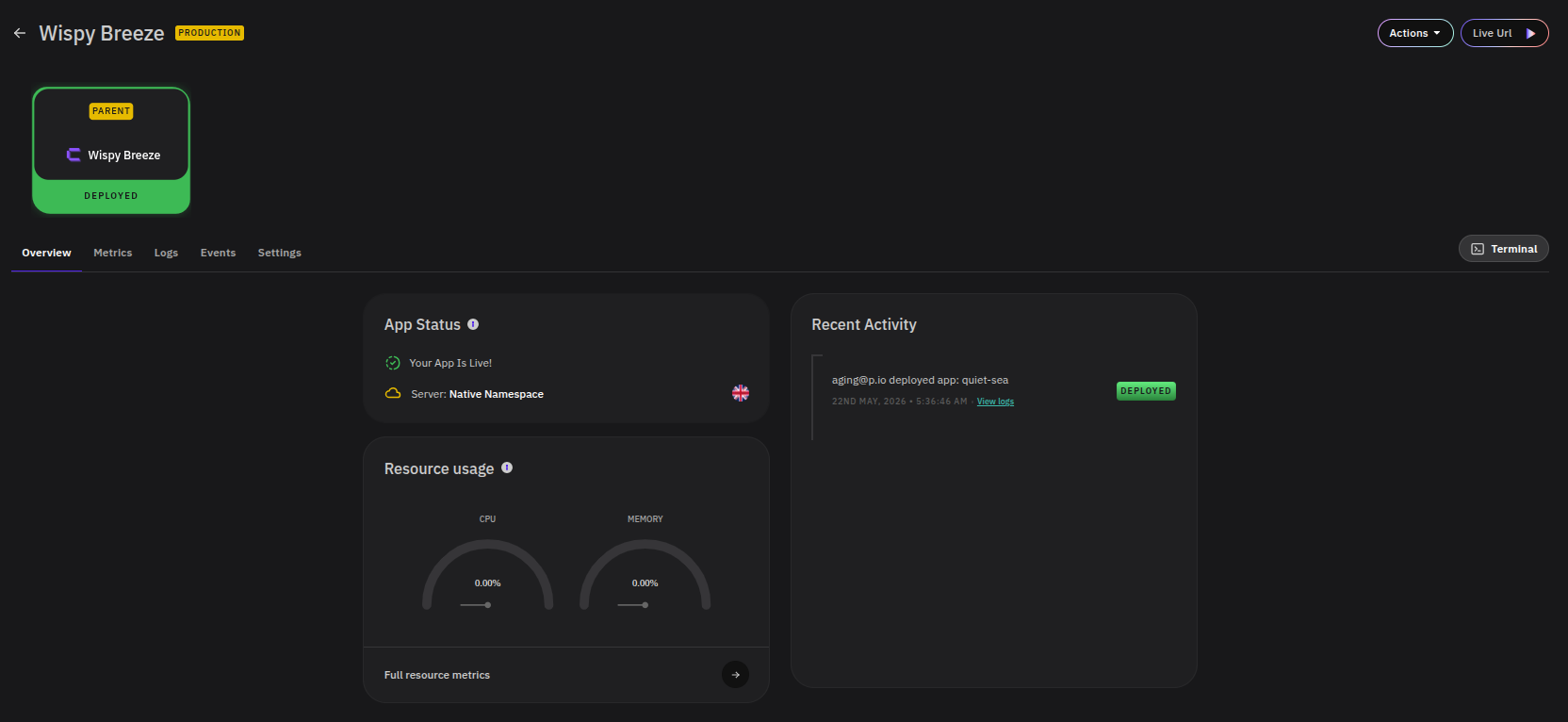
The overview page for non-database add-ons contains the following sections:
- App Status — shows whether the add-on is live, paused, or failed, along with the server name and region it is deployed to.
- Resource Usage — displays CPU and memory consumption as gauge charts. Click Full resource metrics to open a more detailed breakdown.
- Recent Activity — a log of recent deployments, updates, and failures for the add-on.
The tab navigation along the top provides access to:
- Metrics — detailed charts for CPU, memory, storage, and network I/O activity.
- Logs — real-time log output for the add-on.
- Events — a chronological record of deployment events, configuration changes, and system notifications.
- Settings — options to update environment variables, resource allocations, and other configuration settings.
Database Add-on Overview
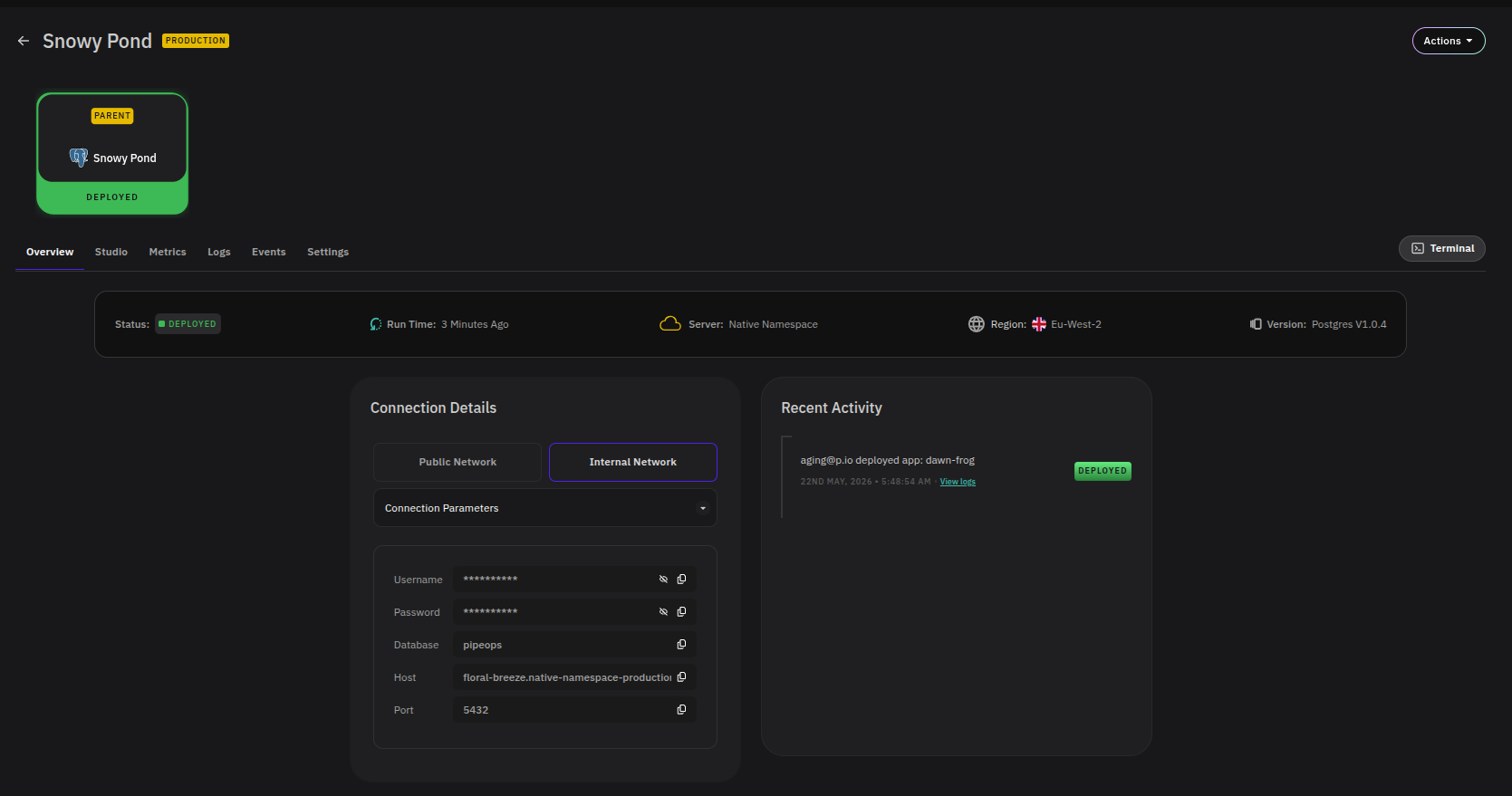
The overview page for database add-ons shows a status bar at the top with the following details:
- Status — whether the database is deployed, paused, or failed
- Run Time — how long the database has been running since its last deployment
- Server — the server the database is deployed to
- Region — the region where the server is located
- Version — the database engine version in use
Below the status bar, the page contains:
- Connection Details — toggle between Public Network and Internal Network to view the relevant connection parameters. Use the Connection Parameters dropdown to reveal credentials including username, password, database name, host, and port. Each value has a copy button for convenience.
- Recent Activity — a log of recent deployments and operational changes.
The tab navigation for database add-ons includes all the tabs available on non-database add-ons, plus:
- Studio — a built-in interface for interacting directly with your database without needing an external client.